Guest profiles
Every hotel booking creates or updates a guest profile automatically. Go to Guest CRM to see them all, then search by name, phone or email, or filter by loyalty tier. Click Export CSV to download the list.
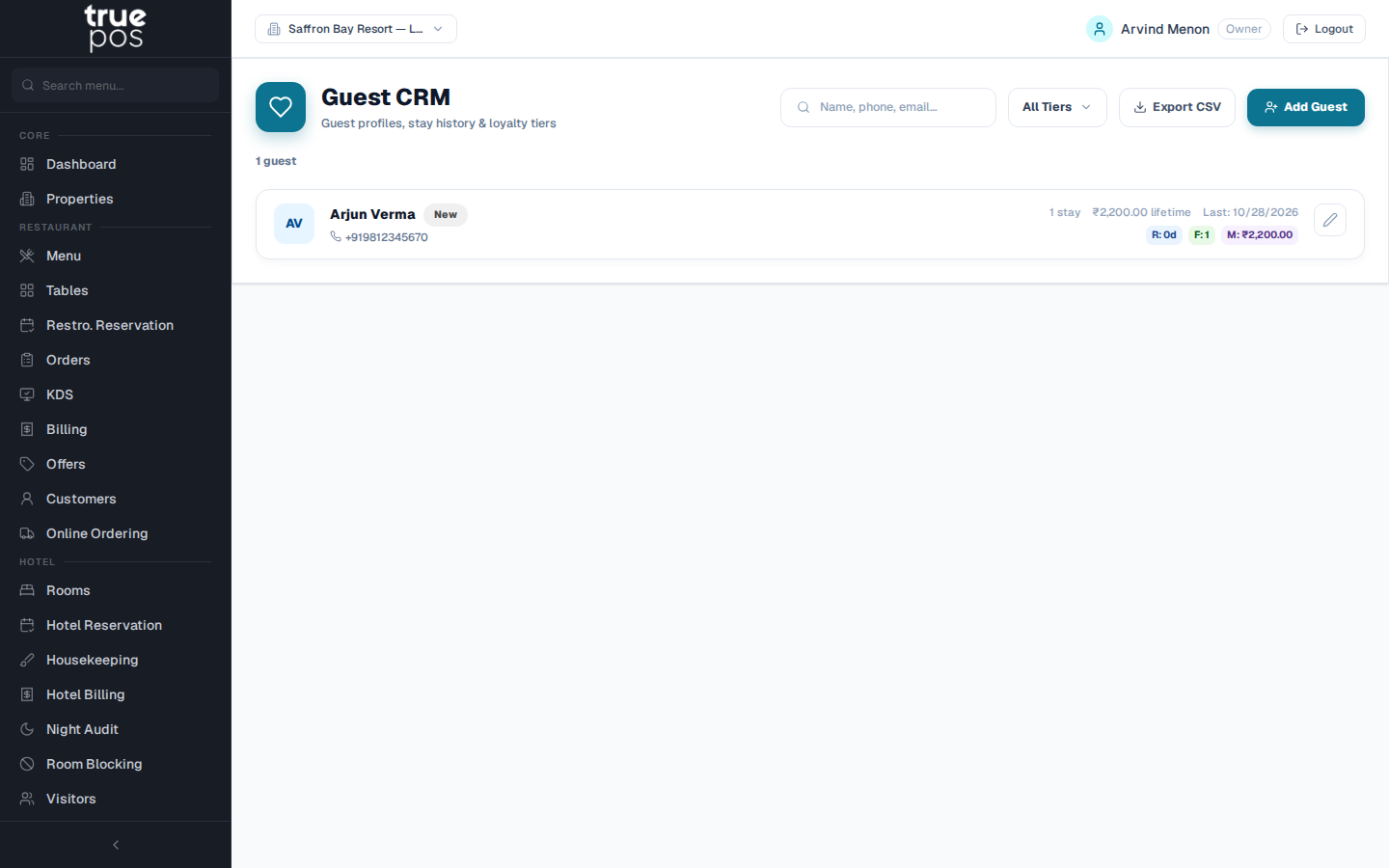
Each guest is placed in a loyalty tier (New, Bronze, Silver or Gold) according to their stays and spending, so staff can recognise your best guests.
Opening a profile
Click a guest to see their profile:
| Section | What it shows |
|---|---|
| Totals | Total Stays, Room Revenue, F&B Revenue and Lifetime Value |
| Profile | Contact details and Nationality |
| Preferences | Preferred Room Type, Preferred Rate Plan, Anniversary, Dietary Preferences (for example Vegetarian, Jain), Special Preferences (for example High floor, extra pillows) and Notes |
| Stay History | Every completed stay |
Update the preferences and click Save Changes. The front desk then has them to hand for the guest's next visit.
Tick Do not contact for promotions if the guest has asked not to receive marketing. Campaigns then skip them automatically.
Adding a guest by hand
Click Add Guest, enter the Guest Name *, and a Phone and/or Email, then save. A guest without a phone number or email can't be matched to future bookings or reached by campaigns.
Merging duplicates
The same person sometimes ends up with two profiles, for example when they book once with a phone number and once with an email. The Guest CRM list flags likely duplicates for you:
- Click Review on a flagged pair.
- Choose which profile to keep, and click Merge into.
You can also open a profile, click Merge into another guest, and search for the profile to keep. The merged profile's stays move to the one you keep, and the duplicate is removed.