In this chapter
The reservations screen
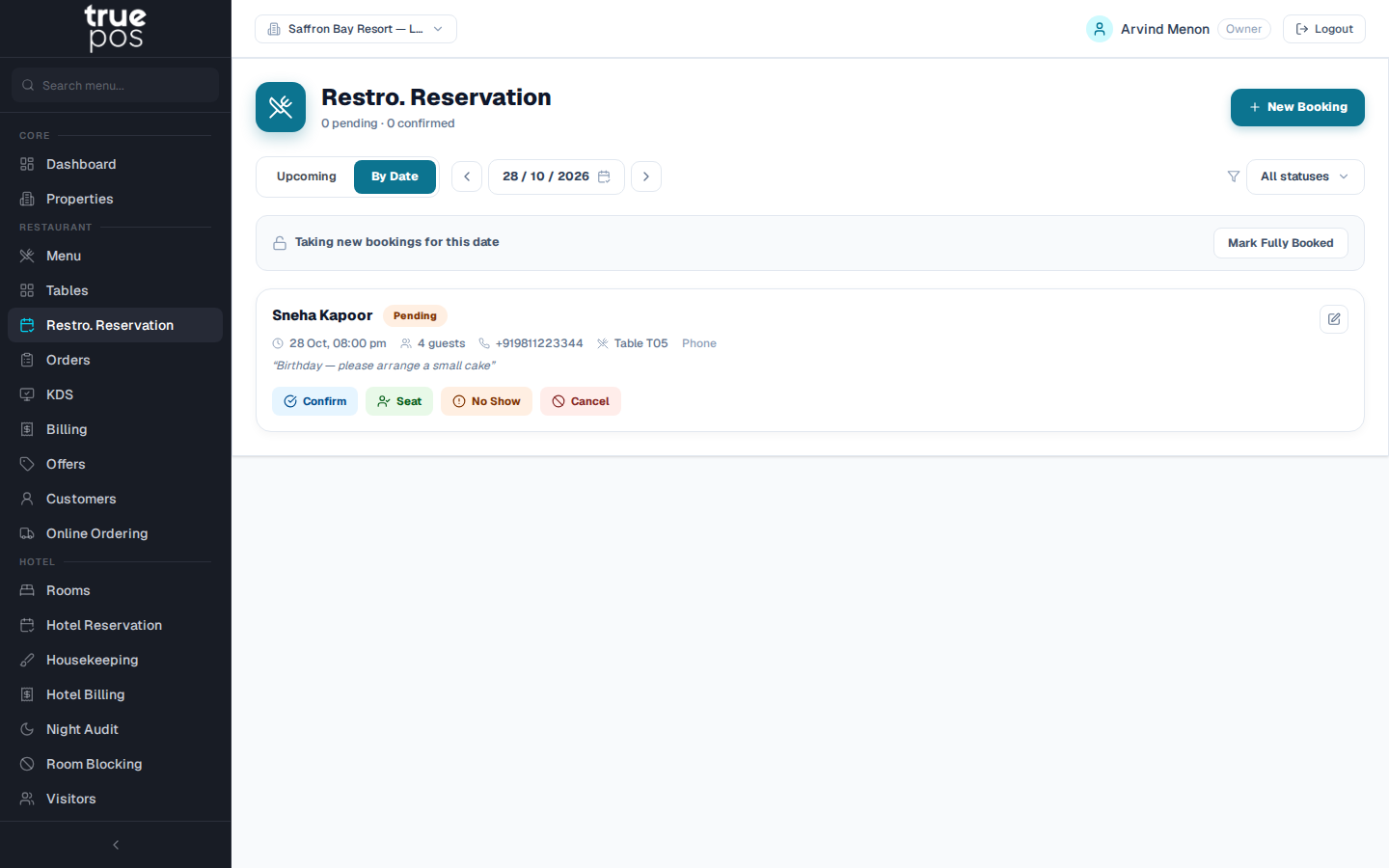
Go to Restro. Reservation, or click Restro. Reservation at the top of the dashboard. There are two views:
- Upcoming: all future bookings
- By Date: the bookings for one day, with that day's Fully Booked status.
You can filter either view by status.
Taking a booking
- Click New Booking.
- Enter the guest's Phone. If they've booked or ordered before, you'll see Matched existing customer — details auto-filled.
- Check or enter the Guest Name * and Email.
- Enter the Party Size *, the date and time, the Duration (minutes), and where the booking came from (Source).
- Tables (optional): pick a table now, or leave it for when the guest arrives. For a large party, select more than one table, and the group is seated across them.
- Add any Special Requests (dietary needs, an occasion) and Staff Notes, which the guest never sees.
- Click Book.
A booking from start to finish
| Status | What it means | Action that moves it on |
|---|---|---|
| Pending | Booked, not yet confirmed | Confirm, or Seat if the guest has already arrived |
| Confirmed | Confirmed with the guest | Seat when they arrive |
| Seated | The guest is at the table | Add Order to start their order |
| Completed | Finished | Happens automatically when the guest's bill is paid |
| Cancelled | Cancelled | Cancel Reservation (a reason is required) |
| NoShow | The guest didn't arrive | No Show (on a Pending or Confirmed booking) |
Tip: Click Add Order on a seated reservation to open a Dine In order already linked to the booking. When that order's bill is paid, the reservation completes by itself. Use View Order to jump back to it.
Cancelling
Click Cancel Reservation, enter the Reason * (for example Guest called to cancel), and confirm. The reason is kept on the booking.
Note: Once an order has been started for a reservation, the reservation can no longer be cancelled.
Closing a date: Fully Booked
When a day is full, or you're closing for a private event, open that date in By Date and click Mark Fully Booked. Add an optional Reason. No new reservations will be accepted for that date. Existing bookings are unaffected.
To open the date again, click Unmark Fully Booked.
Customers
Go to Customers to see everyone who has ordered or booked, with their number of Visits and total Spend. Search by name or phone.
Adding or editing a customer
- Click Add Customer, or Edit on an existing one.
- Enter the Name * and Phone *, plus an optional Email.
- Choose the Type: Registered or Walk-in.
- Tick Do not contact for promotions if the customer has asked not to receive marketing. Campaigns then skip them automatically.
- Click Save.
Note: Staff can also add a customer on the spot while taking an order. See Orders & Kitchen.
Customers' visits and spending feed the loyalty tiers in Customer Insights and the audiences you can target with Campaigns.