In this chapter
The housekeeping board
Go to Housekeeping. Tasks are shown as cards in four columns:
| Column | Meaning |
|---|---|
| PENDING | Waiting to be started |
| IN PROGRESS | An attendant is working on it |
| DONE | Finished, waiting for a supervisor to inspect |
| INSPECTED | Passed inspection. The room is released for sale. |
Filter the board by room or attendant, Type, Priority or Floor.
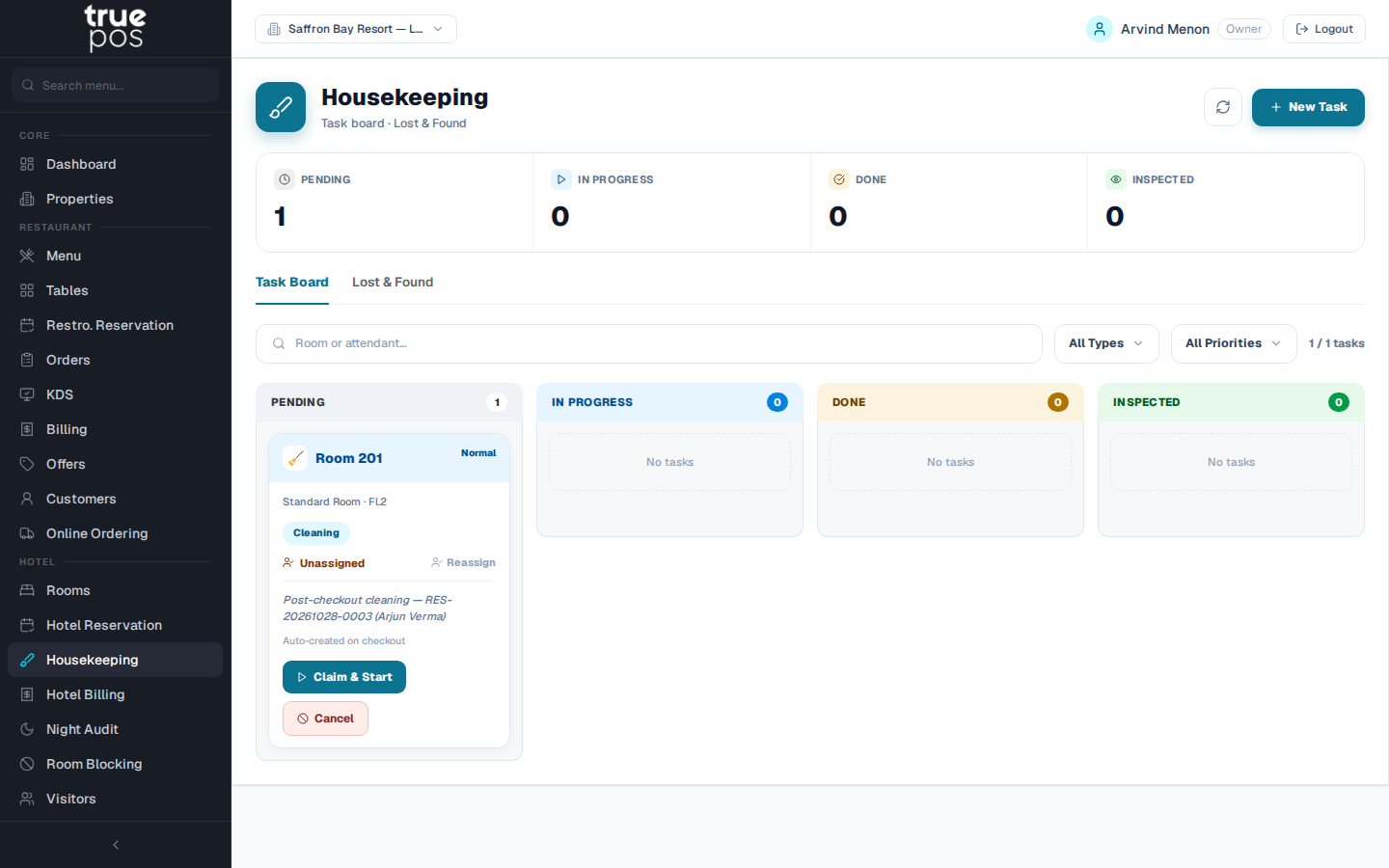
Note: When a guest checks out, a cleaning task is created automatically for their room (marked Auto-created on checkout). You only need to create tasks by hand for other work.
Creating a task
- Click New Task.
- Choose the Room *, and the Task Type: Cleaning, Turndown, Inspection, Maintenance or Deep Cleaning.
- Set the Priority: Normal, Urgent or VIP.
- For maintenance work, choose the Maintenance Category: Plumbing, Electrical, Furniture, AC or Other.
- Add Notes for the attendant, then click Create Task.
Working through a task
- Assign: click Assign on the task and choose the staff member. Use Reassign to move it to someone else, or to take it over yourself.
- Start: the assigned attendant clicks Start, and the task moves to IN PROGRESS.
- Finish: when the room is done, click Mark Done.
- Inspect: a supervisor checks the room:
- Pass (Mark as Inspected) releases the room as Vacant Clean, ready to sell. You'll see Room released to Vacant Clean.
- Reject sends it back to PENDING. A Rejection Remark * is required to explain what needs redoing.
Made a mistake? Undo moves a finished task back to IN PROGRESS, and Send Back returns a started task to PENDING. A task that's no longer needed can be cancelled.
Posting minibar charges
While servicing an occupied room, attendants can charge the minibar straight to the guest's folio:
- On the room's task, click Minibar.
- Tick the items consumed, for example Mineral Water (500ml), Soft Drink (Can), Beer (330ml), Chocolate Bar, Chips, Juice or Nuts Pack, and set the quantities.
- Check the Total to post and click Post to Folio.
The charge appears on the guest's bill immediately. If you see No in-house guest found for this room, nobody is checked in to that room.
Lost & Found
- Open the Lost & Found tab and click Log Item.
- Describe the item (Item Description *, for example Black iPhone 15), and choose the room it was Found In, or leave it as a common area.
- Enter the Storage Location (for example Front desk locker 3) and who found it (Found By). Then click Log Found Item.
When the owner collects it, click Handover. Enter who it was Claimed By * and their Phone, add Handover Notes (for example Showed Aadhaar as proof), and click Confirm Handover. The item moves from In Storage to Claimed.
Room service
Checked-in guests can order food from your restaurant to their room.
Staff taking a room-service order
From Hotel Reservation, click Order food from the in-house restaurant on the guest's booking. Alternatively, go to Orders → New Order and choose Room Service. See Orders & Kitchen for the rest.
Guests ordering by QR code
Each room can have its own QR code, so guests can browse the menu and order from their phone.
- Go to Rooms, and click the Room Service QR code icon on a room's tile.
- Print the Room Service QR Code and place it in the room.
When a checked-in guest scans it, their order goes to the kitchen as a room-service order. Guests can pay at once, pay on delivery, or charge the order to their room and settle at check-out.