In this chapter
Setting up room types
Do this once, before you add rooms. A room type (for example Deluxe Room or Junior Suite) holds the defaults that every room of that type shares.
- Go to Rooms and open Room Types.
- Click Add Room Type. If you have none yet, click Add First Room Type.
- Fill in the details:
| Field | What to enter |
|---|---|
| Room Type Name * | For example Deluxe Room |
| Description | A short description that guests can see |
| Base Rate (₹) * | The normal nightly rate |
| Extra Bed Rate (₹) | The charge per extra bed per night |
| Size (sq.ft) | The room's floor area |
| Max Adults / Max Extra Beds | Occupancy limits |
| Child Free (yrs <) | Children younger than this age stay free |
| Default Rate Plan | Which meal plan applies by default (see Meal plans below) |
| Default Bed Type | For example King or Twin |
| Amenities | Separate items with commas, for example AC, WiFi, Mini Bar, TV |
| Photo URLs | Links to photos of the room type |
- Save the room type.
Adding rooms
- On Rooms, click Add Room (or Add First Room).
- Enter the Room Number * (for example 101), the Floor *, and the Room Type *.
- Optionally, add:
- Wing / Block: for example East Wing
- Bed Type Override: a different bed from the room type's default
- View: for example Pool View or Sea Facing
- Connecting Room: the room this one connects to
- Internal Notes: visible to front-desk staff only.
- Tick any that apply: Smoking, Wheelchair Accessible, Active.
- Save the room.
The room status board
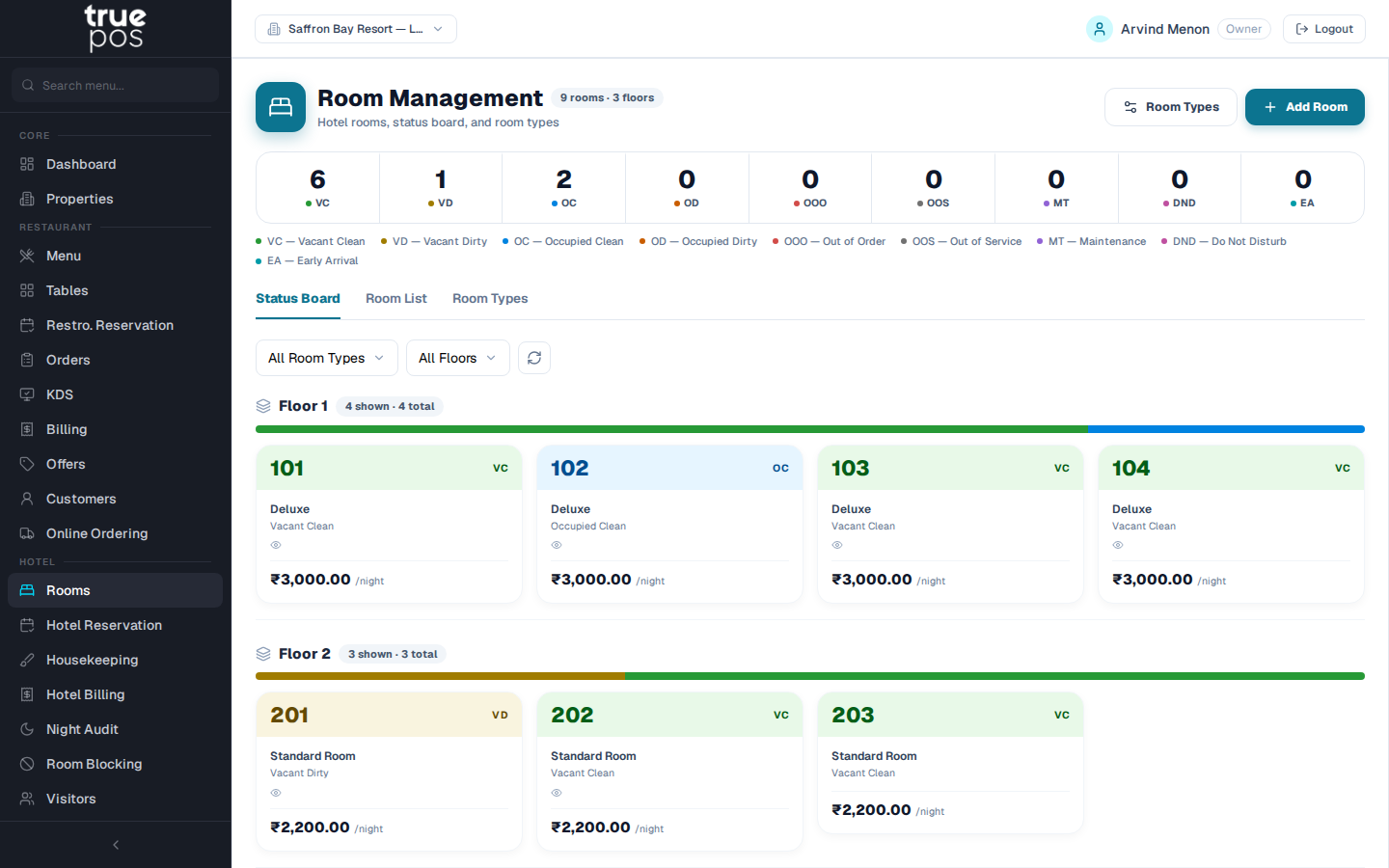
The Rooms screen shows every room as a tile, grouped by floor, coloured by status. A bar at the top of each floor shows its mix of statuses. You can filter by All Room Types or All Floors, or use Search rooms….
| Status | Meaning |
|---|---|
| Vacant Clean (VC) | Ready to sell |
| Vacant Dirty (VD) | The guest has left and the room needs cleaning |
| Occupied Clean (OC) | A guest is staying and the room has been serviced |
| Occupied Dirty (OD) | A guest is staying and the room needs servicing |
| Out of Order (OOO) | Broken or under repair, so it can't be sold |
| Out of Service (OOS) | Temporarily taken off sale |
| Maintenance (MT) | Scheduled maintenance or refurbishment |
| Do Not Disturb (DND) | Skip housekeeping on this visit |
| Early Arrival (EA) | The guest checked in before the standard check-in time |
To change a room's status, click its tile, choose the new status, and click Apply Status. For Out of Order, Out of Service and Maintenance, you must also enter a Reason, and you can add an Expected return date.
Tip: Statuses also change automatically. Checking a guest out sets the room to Vacant Dirty, so housekeeping knows to clean it.
Setting date-wise rates (rate calendar)
Use the rate calendar to charge more at weekends or during festivals, or to stop selling a room type on certain dates.
- On a room type, click the Rate & inventory calendar icon.
- Under Set rate / availability for a date range, choose From and To dates.
- Enter the Rate (₹) for those dates. To stop bookings on them, tick Stop-sell (closed) instead.
- Save. You'll see Rate calendar updated.
To remove your changes for a period, select it and click Revert to Default.
Meal plans
| Plan | Includes |
|---|---|
| EP (European Plan) | Room only, no meals |
| CP (Continental Plan) | Room and breakfast |
| MAP (Modified American Plan) | Room, breakfast and dinner |
| AP (American Plan / Full Board) | Room and all three meals |
The front desk screen
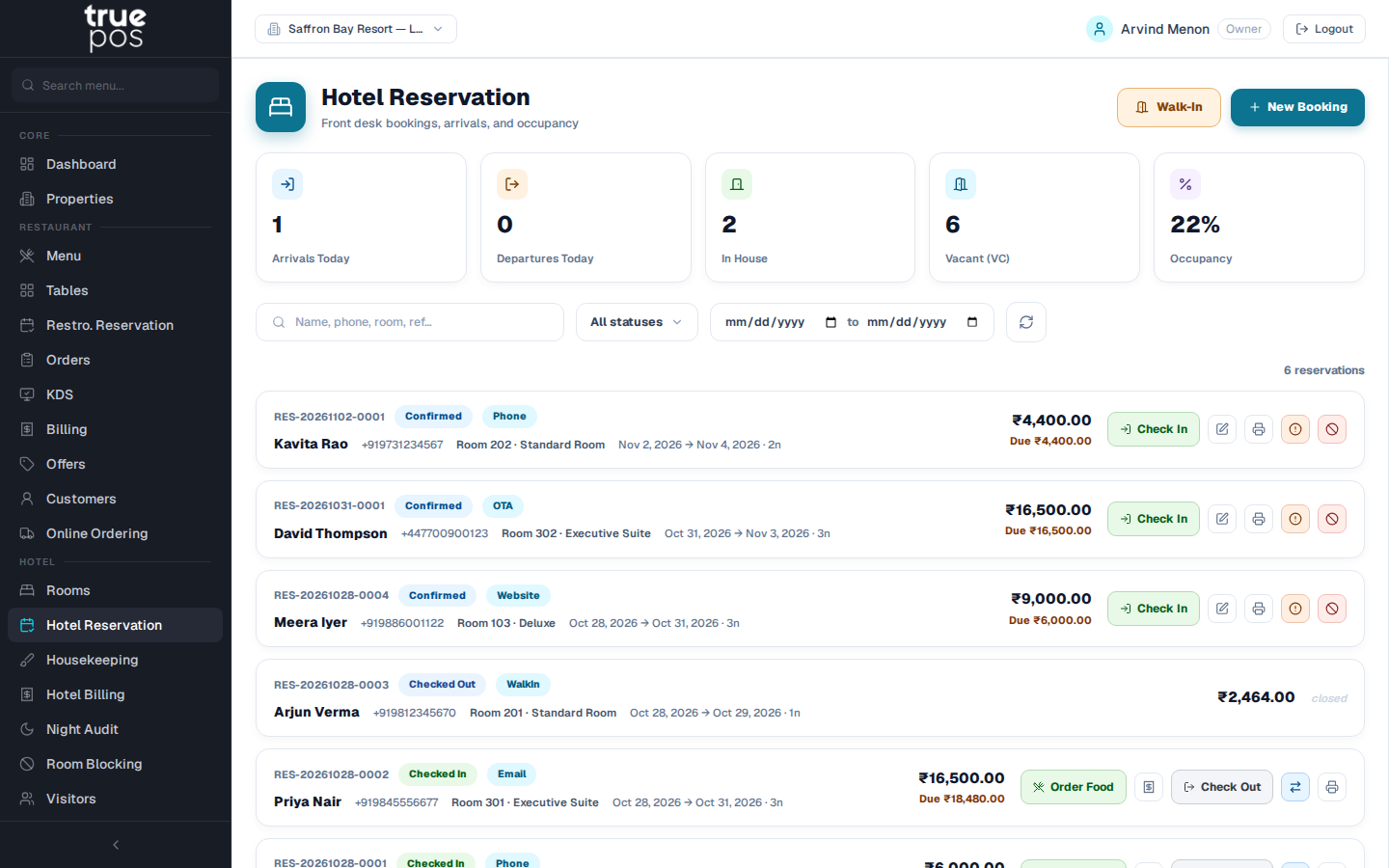
Go to Hotel Reservation. The top of the screen shows today at a glance: Arrivals Today, Departures Today, In House, Vacant (VC) and Occupancy.
Below that, every booking is listed. Search by Name, phone, room, ref…, filter by status (Confirmed, Checked In, Checked Out, Cancelled, No Show), or filter by check-in dates.
Taking a new booking
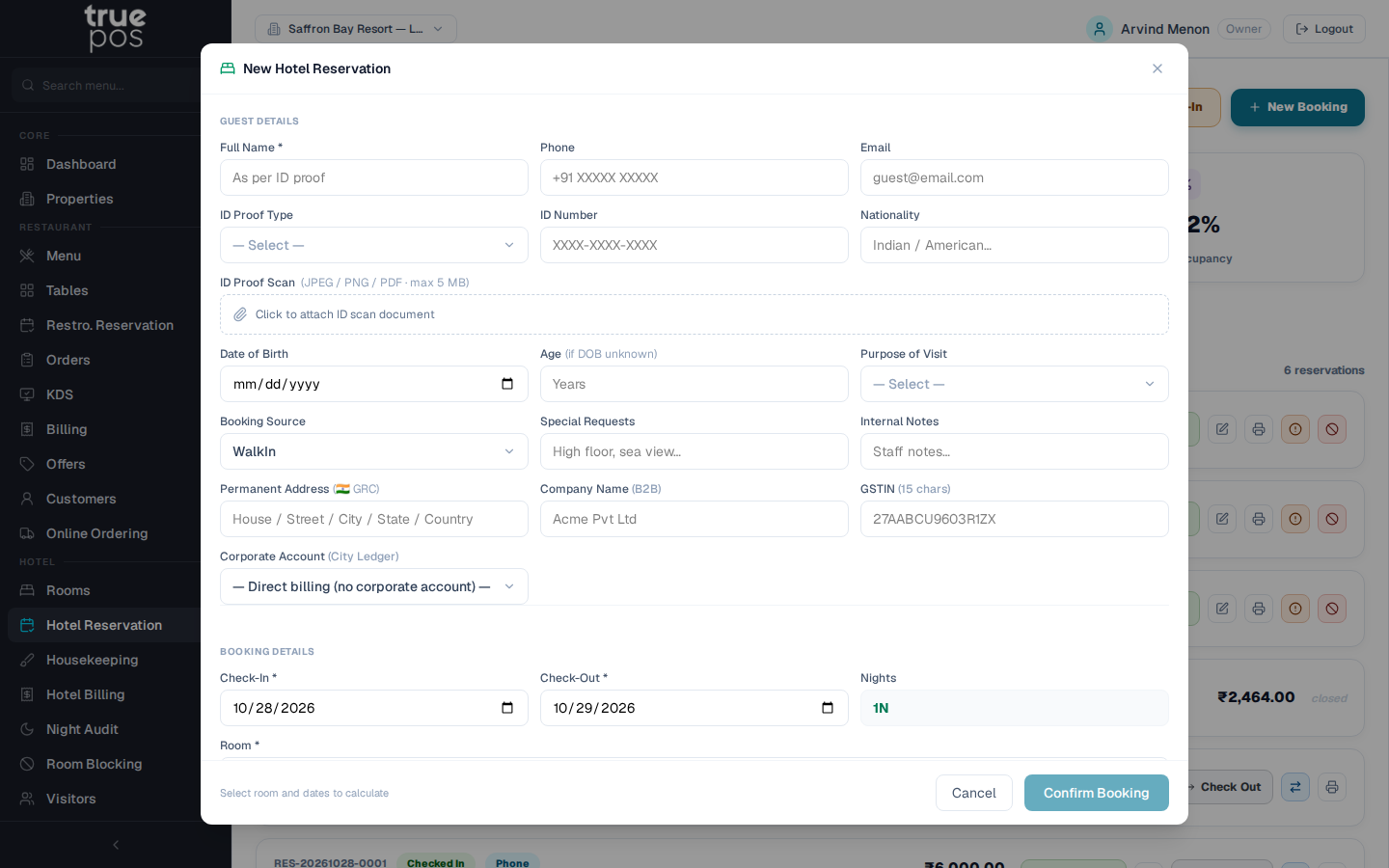
- Click New Booking.
- Under Guest Details, enter the guest's Full Name * exactly as it appears on their ID, and their Phone and Email.
- If the guest has stayed before, a Repeat Guest banner appears showing their number of previous stays, when they last stayed, and their total spend.
- Add identity details: ID Proof Type (Aadhaar, Passport, PAN, Voter ID, Driving Licence or Other), ID Number and Nationality. You can attach a scan of the ID.
- Enter the Date of Birth, and the age is filled in for you. If the date of birth isn't known, type the age directly.
- Choose the Purpose of Visit (Business, Leisure, Transit, Medical, Education or Other) and the Booking Source (Walk-in, Phone, Email, OTA or Website).
- Add any Special Requests (for example High floor) and Internal Notes for staff.
- Corporate guests: enter the Company Name and GSTIN for a GST invoice in the company's name. To bill the company on credit, choose its corporate account. The bill is then posted to the corporate ledger at checkout.
- Under Booking Details, choose the Check-In * and Check-Out * dates. The number of Nights is calculated for you.
- Choose the Room * from the list of rooms available for those dates. Then enter the Adults, Children and Extra Beds.
- Choose the Rate Plan and check the Rate / Night (₹).
- Enter any Advance (₹) received. The Total / Balance updates as you go.
- Click Confirm Booking.
Note: If you see No rooms available — adjust dates or check room statuses, every suitable room is booked, blocked or out of order for those dates.
Walk-in guests
For a guest who arrives without a booking, click Walk-In. The form is the same as a new booking, but the guest is booked and checked in in one step, and the booking source is set to Walk-in.
Checking a guest in
- Find the booking (it shows as Confirmed) and click Check In.
- Confirm. The booking becomes Checked In, and the room becomes occupied.
To print the Guest Registration Card (GRC) for the guest to sign, click Print GRC.
During the stay
For a guest who is Checked In, you can:
| Button | What it does |
|---|---|
| Order food from the in-house restaurant | Opens a Room Service order for this guest. See Orders & Kitchen. |
| Log a charge for food ordered from outside | Adds a charge to the guest's bill for food ordered from outside, for example through Zomato or Swiggy. Enter a Description and Amount (₹), then click Log Charge. No kitchen ticket is created. |
| Change Room | Moves the guest to another available room. Pick the room and click Move Guest. The old room becomes Vacant Dirty. |
| Edit | Changes the booking details |
Checking a guest out
- Find the guest (they show as Checked In) and click Check Out.
- In Check Out Guest, the final amount is calculated for you. To charge a different amount, enter it under Final Amount Override (₹). Otherwise leave it blank.
- Click Check Out.
The room becomes Vacant Dirty for housekeeping. To settle the guest's folio and issue the GST invoice, see Hotel Billing & City Ledger.
Cancellations and no-shows
On a Confirmed booking:
- click Cancel to cancel it, for example when the guest phones to cancel
- click No Show if the guest never arrived.
You can add a Reason (for example Guest cancelled by phone), then confirm with Cancel Booking or Mark No-Show.
Blocking a room
Use Room Blocking to take a room off sale for a period, for example for maintenance or to hold it for a VIP.
- Go to Room Blocking and click Block Room.
- Choose the Room *, From * and To * dates, and a Reason *: Maintenance, Deep Cleaning, VIP Hold, Renovation, Out of Order or Other.
- Add Notes if needed, then click Block Room.
Blocks for the next 30 days are listed on the page. To release a block, remove it from the list and confirm.
Visitor register
Use Visitors to record people who visit in-house guests, for security.
- Go to Visitors and open Visitor Check-In.
- Enter the Visitor Name *, their Phone and, if needed, their ID Proof Type and ID Number.
- Enter the Purpose of Visit, the Attending Guest and the Room No.
- Click Check In.
When the visitor leaves, click Check Out next to their name. The page lists everyone who is currently on the premises.