In this chapter
The Billing screen
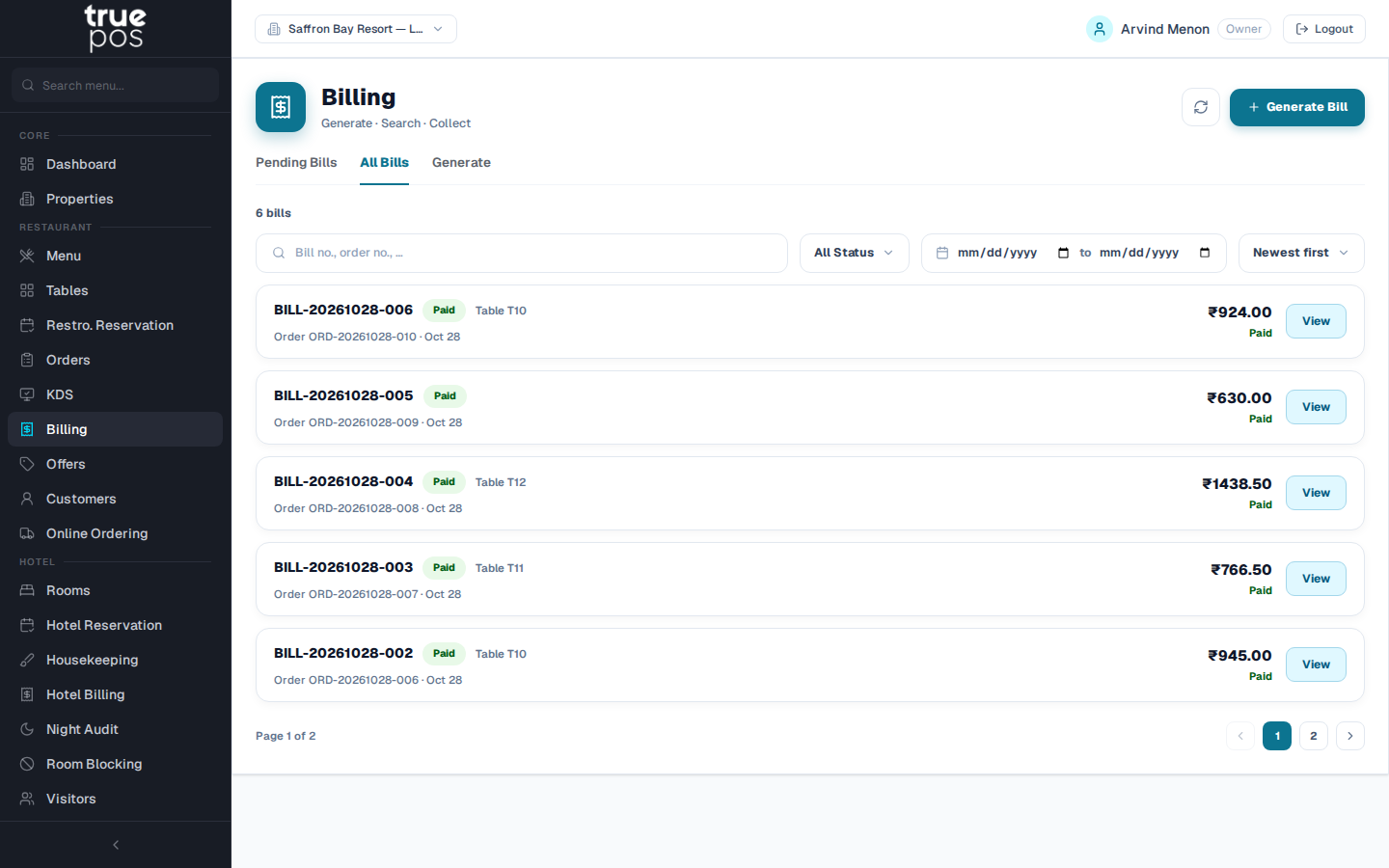
Go to Billing in the left-hand menu. It has three tabs:
| Tab | What it shows |
|---|---|
| Pending Bills | Bills that have been generated but not yet fully paid |
| All Bills | Every bill, which you can filter by status (Open, Paid, Voided), search by bill or order number, and sort by date or amount |
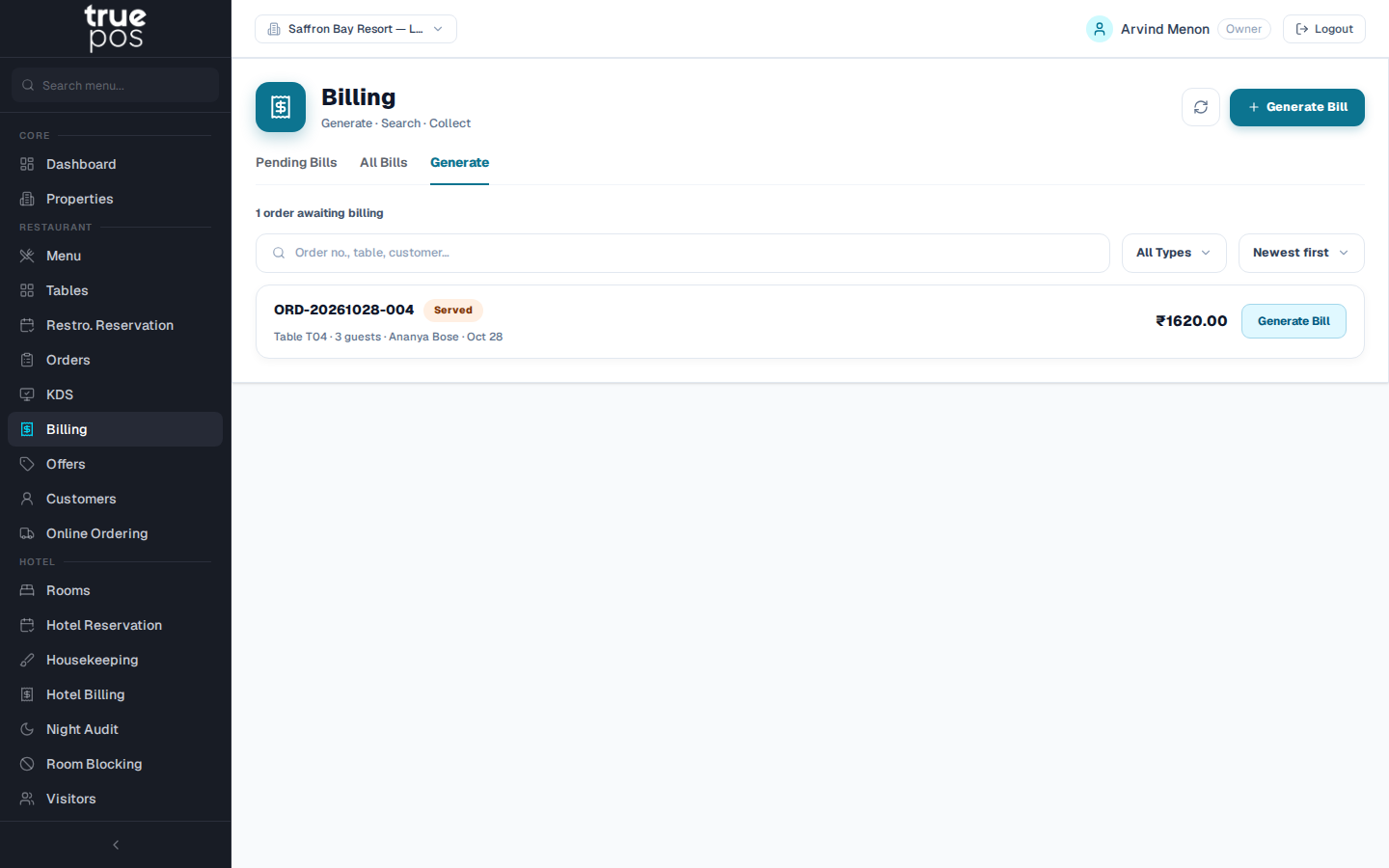
| Generate | Served orders that are waiting for a bill, with filters for Dine-In, Takeaway and Delivery |
Generating a bill
You can generate a bill from either of two places:
- from the order itself: when it is Served, click Generate Bill
- from Billing → Generate: find the order and click Generate Bill.
Then:
- Choose the GST Rate: 0%, 5%, 12% or 18%. CGST and SGST are split automatically.
- Choose a Discount if the guest is entitled to one:
- None
- Fixed ₹: a rupee amount off the bill
- Percentage %: a percentage off the bill
- Coupon Code: type the code from an offer and click Apply to check it is valid.
- Add Notes if needed (optional).
- Click Generate Bill.
You'll see Bill ‹number› generated, and the bill opens.
Note: Staff without discount permission see only the Coupon Code option (Only coupon-code discounts are available to your role.). This lets cashiers redeem genuine offers without being able to give arbitrary discounts.
Reading a bill
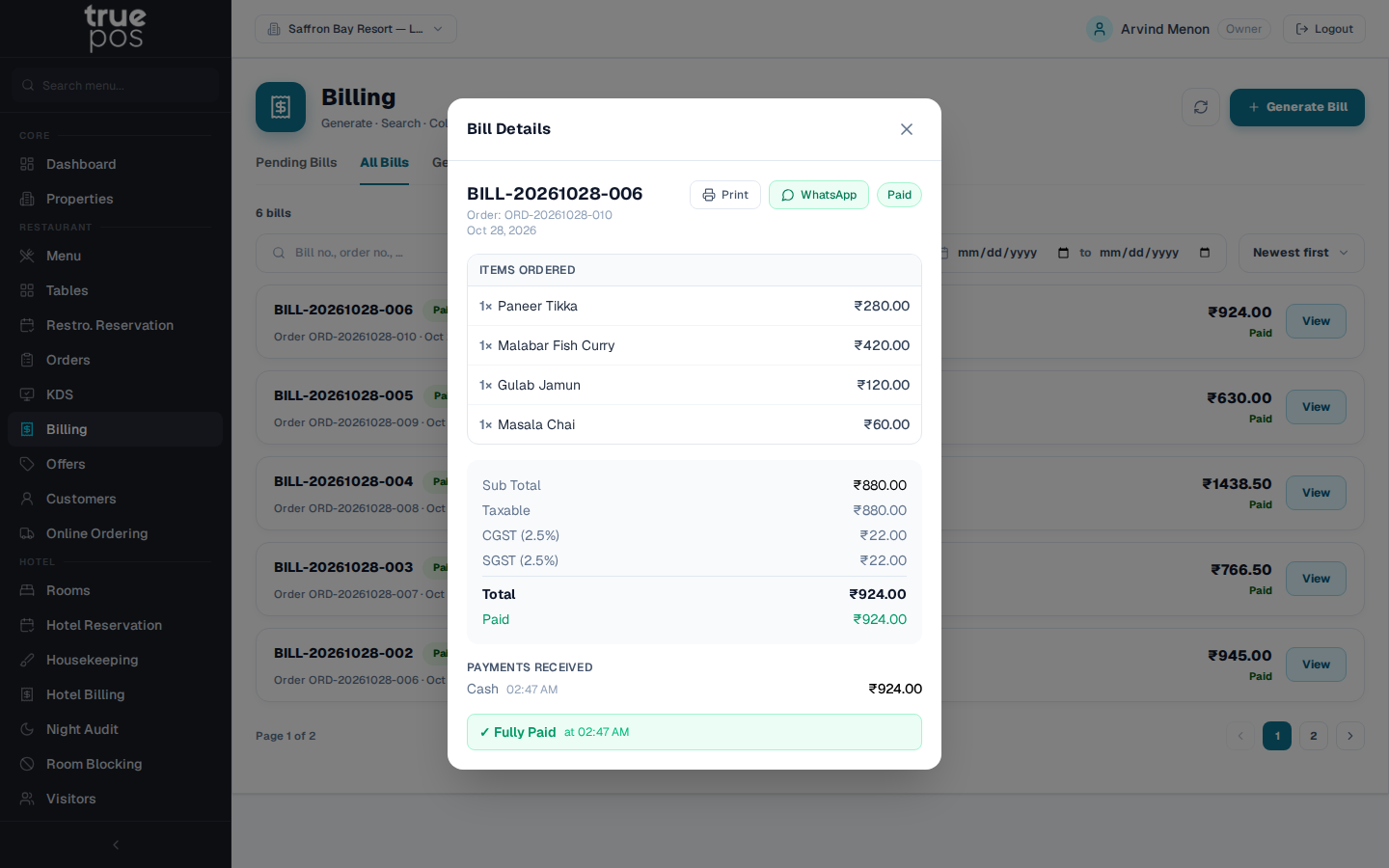
The Bill Details window shows:
- Items Ordered
- Sub Total, Discount, Taxable amount and Total
- Paid and Balance Due
- a Payments Received list showing every payment taken so far.
Taking payment
- Under Record Payment, choose the method: Cash, Card, UPI, Other or Post to Room.
- Enter the Amount ₹.
- Click Pay. You'll see Payment recorded.
When the payments add up to the total, the bill is marked Paid.
Splitting a bill
- Paying with more than one method (for example part cash, part UPI): record one payment for each method. The Balance Due goes down with each payment.
- Sharing the bill equally: use the Equal Split calculator. Enter the number of Guests and it shows how much each person owes. Then record each person's payment.
Charging a meal to a hotel room · Hotel
If the guest is staying in your hotel, choose Post to Room, then search by room number or guest name and click Post to Room Folio. The charge moves to the guest's folio and is settled at check-out. You'll see F&B charge posted to guest folio.
Printing or sending the bill
- Print: click Print to print the receipt. The layout comes from Settings → Receipt & Printing.
- WhatsApp: click WhatsApp to send the bill to the customer's phone. You'll see Bill sent via WhatsApp.
Note: The WhatsApp button is greyed out if the customer has no phone number on file. Add the number to the customer's record and try again.
Correcting a bill
- Before any payment is taken, staff who can generate bills can click Edit, change the GST Rate, discount or Notes under Edit Tax & Discount, and click Save Changes.
- Voiding a bill: if a bill is wrong and has to be redone, click Void This Bill and confirm. The bill is cancelled and the order returns to Served, so you can generate a corrected bill. You'll see Bill voided — order reverted to Served status.
Voiding is available only to staff with void permission, and only while the bill is Open.
Creating an offer or coupon
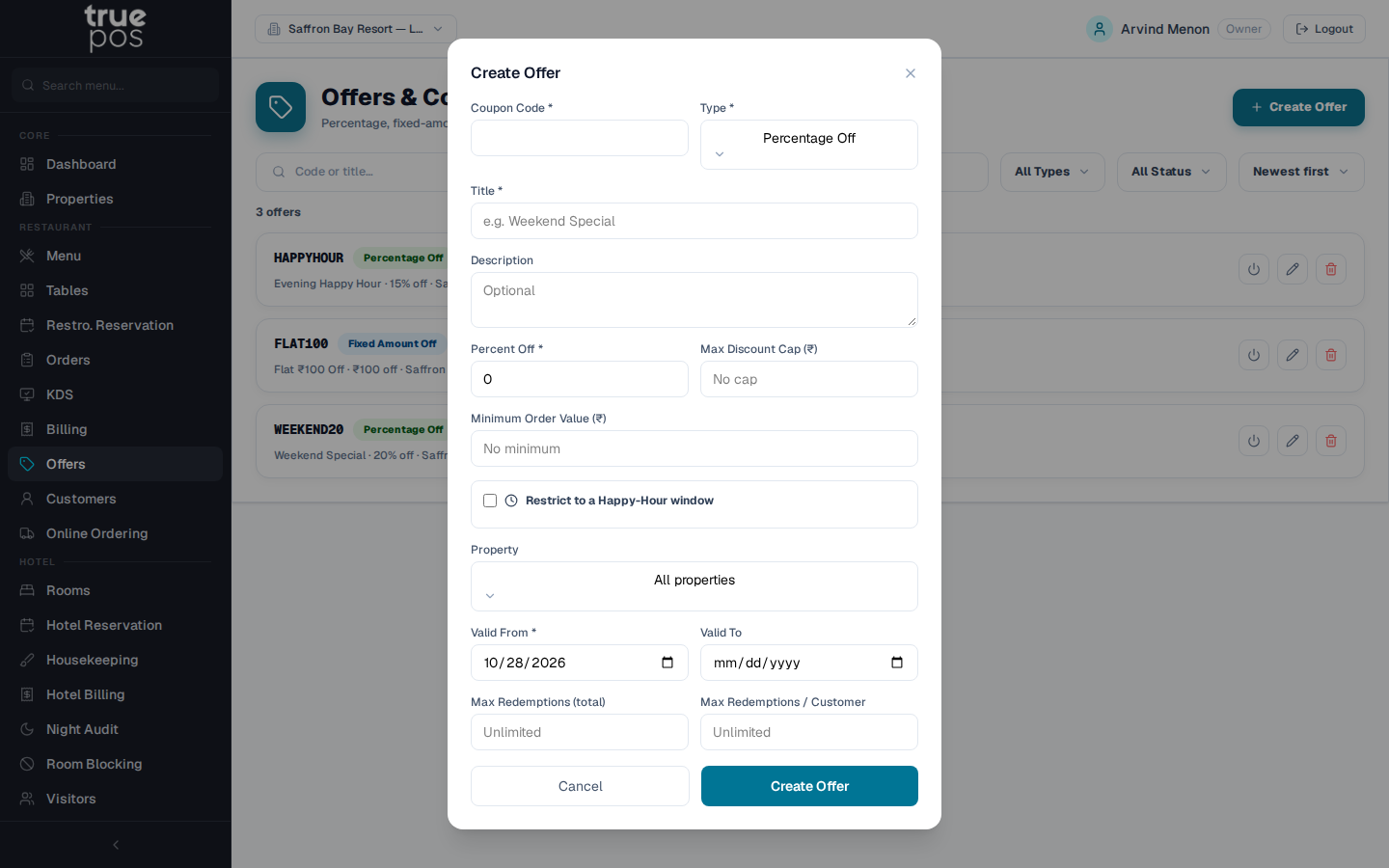
Go to Offers and click Create Offer.
- Enter a Coupon Code, for example
WEEKEND20. It is converted to capital letters automatically. - Choose the Type:
- Percentage Off: for example 20% off
- Fixed Amount Off: for example ₹100 off
- Buy X Get Y: see below.
- Give the offer a Title, for example Weekend Special, and an optional Description.
- Set any limits:
- Max Discount Cap (₹): the most a percentage offer can take off
- Minimum Order Value (₹): the smallest bill the offer applies to.
- Choose the Property, or All properties.
- Set Valid From, and optionally Valid To (leave it blank for no expiry).
- Set redemption limits if you want them: Max Redemptions (total) and Max Redemptions / Customer.
- Click Create Offer. You'll see Offer created.
Buy X Get Y offers
Under Buy (trigger items), choose the items or categories the guest must order and the required quantity. Under Get (reward items), choose what they receive, with the quantity and the Discount %. Use 100 to make the reward item free.
Happy-hour offers
Tick Restrict to a Happy-Hour window, then set a Start time and End time. Pick the days of the week the offer runs. If you select no days, it runs every day.
Managing offers
The Offers list can be searched by code or title, filtered by type and status (Active or Inactive), and sorted, for example by Most redeemed. Use Activate / Deactivate to switch an offer on or off, and Edit or Delete to change or remove it.