In this chapter
What a folio is
A folio is the guest's running bill for their stay. It is created automatically when the guest checks in, and everything charged during the stay is posted to it:
| Charge type | Examples |
|---|---|
| Room Charge | The nightly room rate |
| F&B | Restaurant meals and room service charged to the room |
| Extra Charge | Laundry, mini bar, parking, early check-in or late check-out |
| Discount | Discounts given on the folio |
| Tax | GST |
Opening a guest's folio
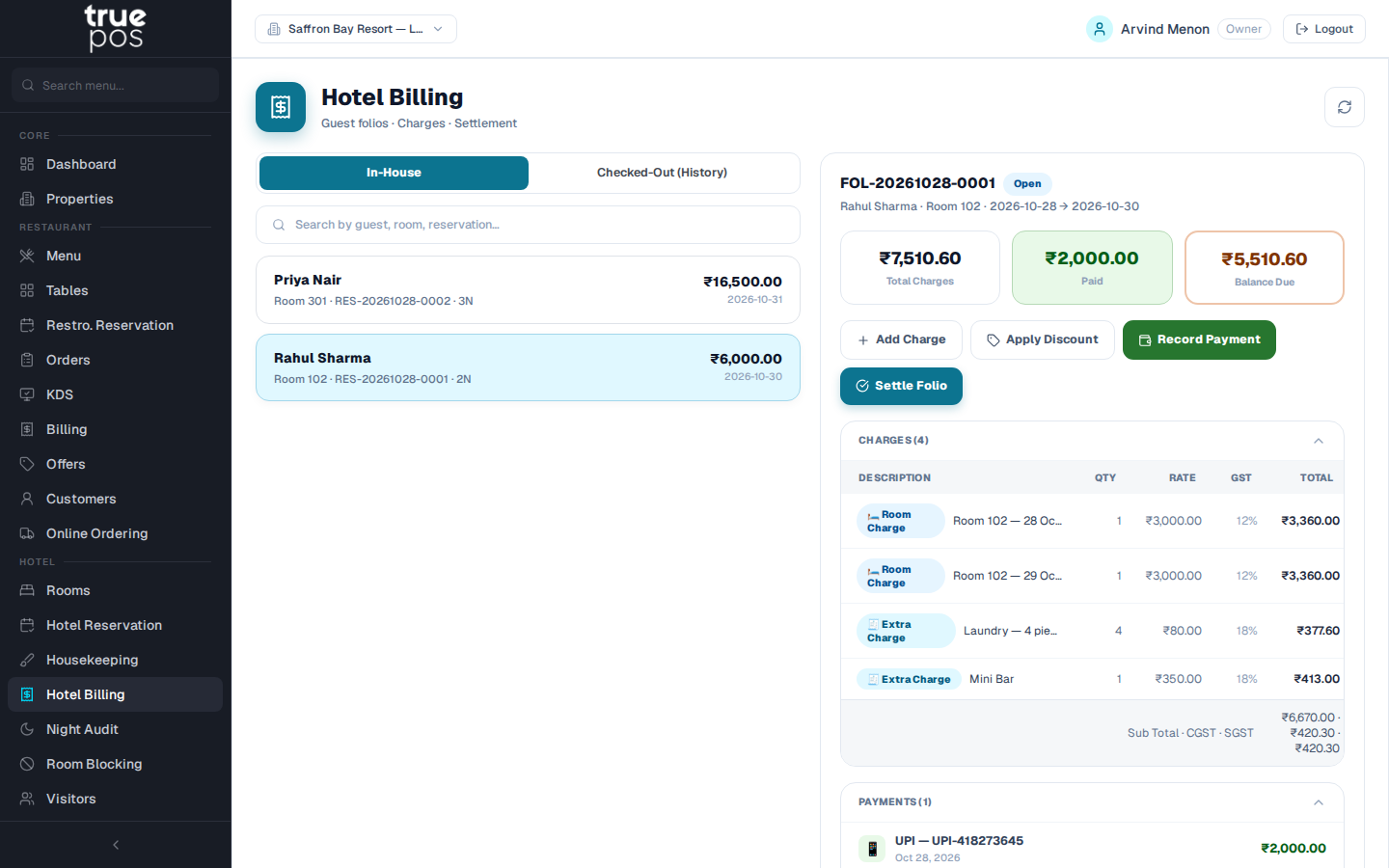
- Go to Hotel Billing.
- Choose In-House for guests who are staying now, or Checked-Out (History) for past stays.
- Search by guest, room or reservation, and click the guest.
The folio opens on the right. It shows the guest, room and stay dates, every charge (with Rate, GST and Total), every payment, and the totals: Total Charges, Paid, and the Balance Due (or Cleared, or Overpaid).
Posting room charges
Click Post Room Charges to add the room rate for the nights stayed so far. You'll see Room charges posted.
Tip: If your hotel runs the Night Audit every night, room charges are posted automatically and you won't usually need this button.
Adding an extra charge
- Click Add Charge.
- Choose the Charge Type, and enter a Description * such as Laundry, Mini Bar or Parking.
- Enter the Qty and Unit Price (₹), and choose the GST % (0%, 5%, 12% or 18%).
- Click Post Charge. You'll see Charge posted.
Charges posted by mistake can be removed with Void charge.
Note: Restaurant bills that staff send to the room with Post to Room appear on the folio automatically as F&B charges. See Restaurant Billing & Offers.
Applying a discount
Click Apply Discount, choose the discount type (a fixed amount, a percentage, or a coupon code), enter the value, add an optional note for the folio line, and click Apply Discount.
Recording a payment
Take advances and part-payments at any time during the stay, as well as the final payment at check-out.
- Click Record Payment.
- Choose the method: Cash, Card, UPI, Bank Transfer or City Ledger.
- Enter the Amount (₹) *.
- For any method except cash, enter the UPI Transaction ID or Reference / Approval Code, so the payment can be matched later.
- Add Notes if needed, and click Record Payment.
Settling the folio and issuing the invoice
When the guest checks out:
- Post any last charges, then record the guest's final payment.
- When the payments bring the balance to zero, the folio settles automatically and shows Cleared. To close it manually instead, click Settle Folio. You'll see Folio settled.
- Click Print Invoice to preview and print the GST invoice. Click WhatsApp to send it to the guest's phone. Both buttons appear once the folio is settled.
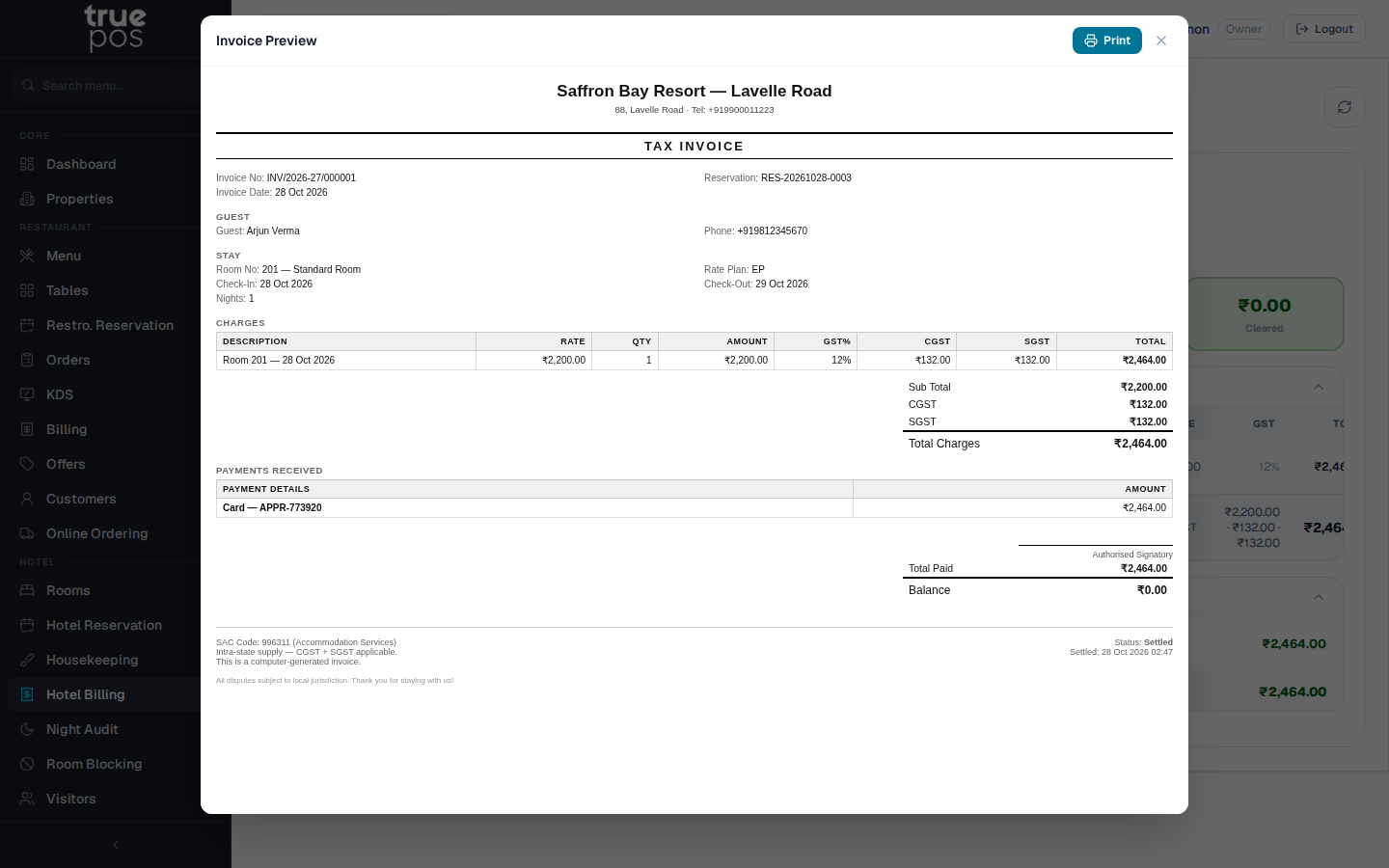
Important: If you click Settle Folio yourself, make sure the balance is Cleared first. A settled folio is closed for changes, so any amount still owing should already have been collected or moved to the company's account (see City Ledger below).
You can choose which sections the invoice shows, in what order, and add your own text, under Settings → Invoice Settings. The printed invoice and the WhatsApp invoice always match.
City Ledger: billing companies on credit
The City Ledger lets a company pay later for its employees' stays. Instead of collecting from the guest at check-out, you invoice the company, for example once a month.
Creating a corporate account
- Go to City Ledger and click + Add first account (or the add button if accounts already exist).
- Enter the Company Name *, and the GSTIN and PAN if you have them.
- Enter the Contact Person.
- Under Phone Numbers, click + Add Phone for each number. Under Emails, click + Add Email for each address. Use Mark as primary to choose the main number and email.
- Enter the Billing Address, a Credit Limit (₹) and the Payment Terms: Immediate, Net 15, Net 30 or Net 45.
- Click Create Account.
Linking a stay to the company
When you take the booking, choose the company's corporate account in the booking form (see Rooms & Front Desk). At check-out, the stay is posted to the company's ledger and shows under the company's Unbilled Stays.
Invoicing the company
- In City Ledger, select the company.
- Open Generate Corporate Invoice. Under Select Reservations to Bill, tick the stays to include, or click Select all.
- Set the Invoice Date and Due Date, and add Notes such as a PO number.
- Generate the invoice. You'll see Invoice ‹number› generated — ‹amount›.
The company's invoices are listed with their status: Unpaid, Overdue or paid. The Outstanding figure shows the total the company owes.
Recording the company's payment
When the company pays, click Record Payment, enter the Amount (₹) and a Reference / Notes such as an NEFT reference or cheque number, and click Record Payment.