In this chapter
What a property is
A property is one business location: a restaurant outlet, a café, a cloud kitchen or a hotel. Each property has its own menu, tables, rooms, staff assignments, stock, books of account and settings. Owners can see all of them from one login.
Properties are added to your account by your truePOS partner when your subscription is activated. You can't create them yourself, so contact your partner when you open a new location.
Viewing your properties
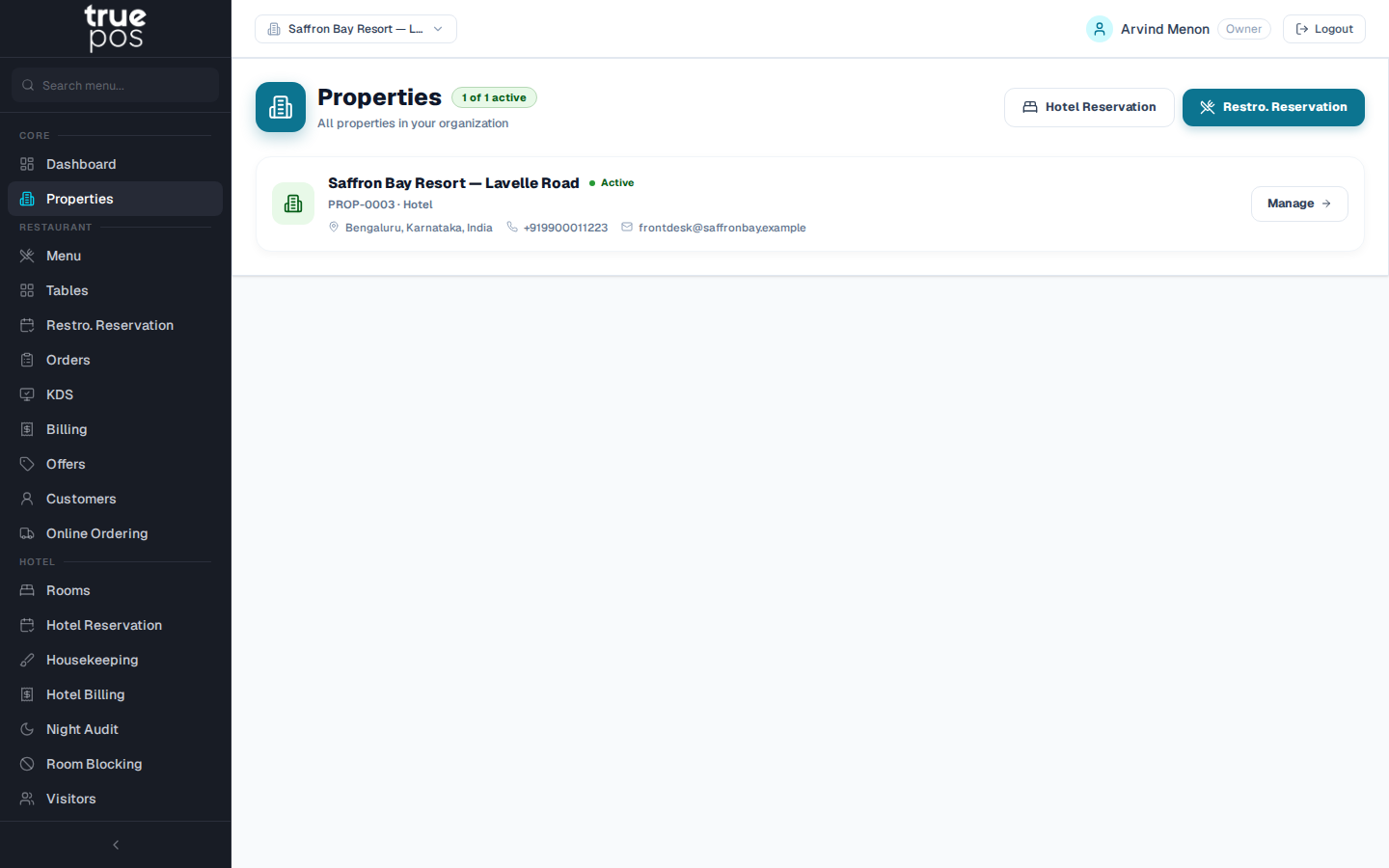
Go to Properties. Every property in your organisation is listed with its status:
| Status | Meaning |
|---|---|
| Active | Licensed and ready to use |
| Inactive | No active subscription key, so staff can't select it. Contact your partner to activate it. |
Click Manage to open a property.
Property details
Each property's page has these sections:
| Section | What it holds |
|---|---|
| General | The property's name, type and status |
| Contact & Location | Address, phone and email, used on bills, invoices and guest messages |
| Subscription | The plan and licence this property is activated with |
| Operational Settings | The GSTIN for this branch, and its Working Hours |
Setting the GSTIN
Enter the property's GSTIN (GST Identification Number) under Operational Settings, for example 27AAAAA0000A1Z5. Each branch can have its own GSTIN, which supports businesses registered in more than one state. The GSTIN is printed on that property's bills and invoices.
Setting working hours
Under Working Hours, set the opening and closing time for each day of the week, or mark a day as Closed. Click Save Settings. You'll see Settings saved.
Tip: To work in a property day to day, choose it in the property switcher at the top of the screen. See Getting Started.