Promotional campaigns · Add-on
Go to Campaigns to see your campaigns, how many people each was sent to, and how many messages were Sent and Failed.
Creating a campaign
-
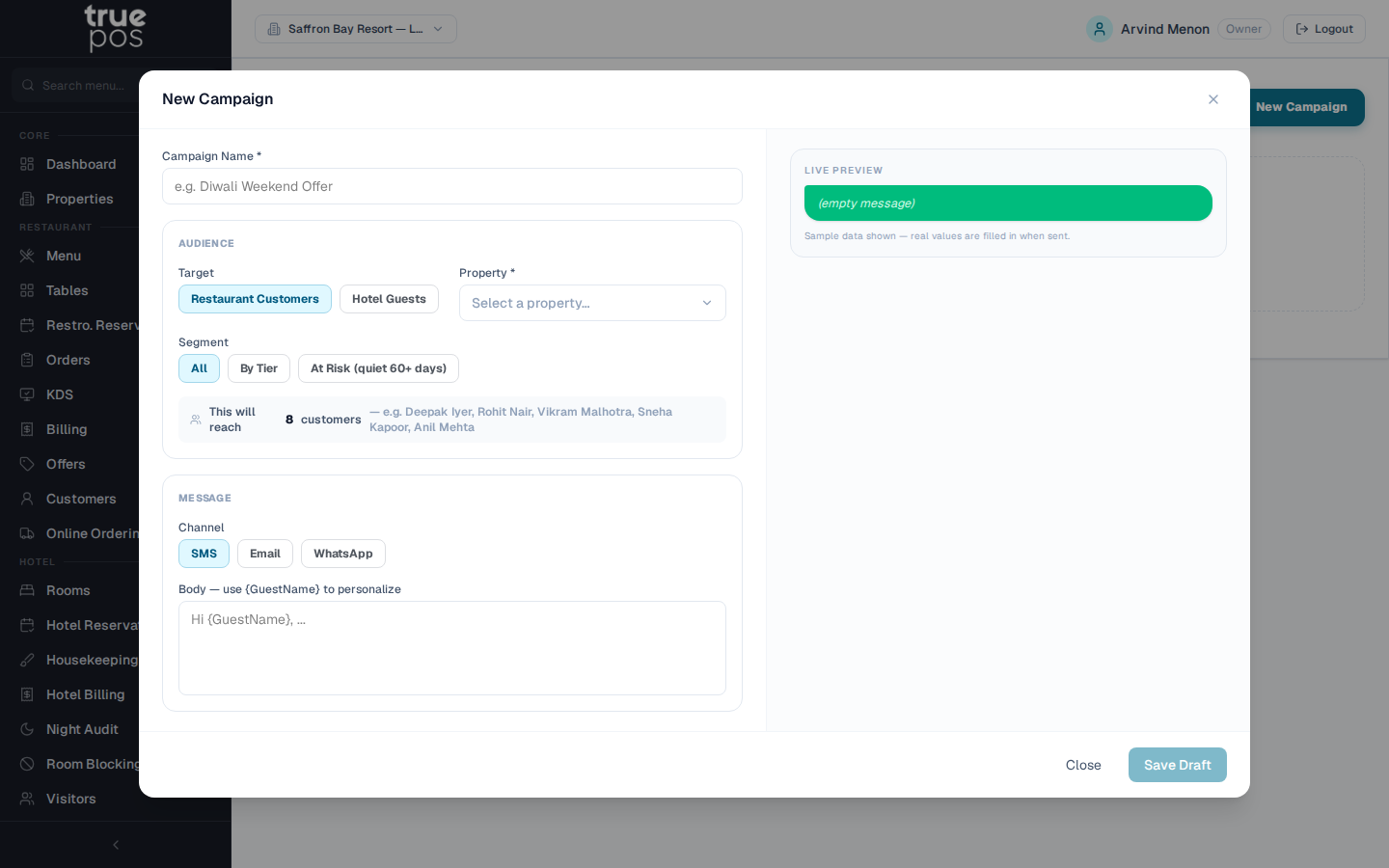
Click New Campaign, and give it a Campaign Name * (for example Diwali Weekend Offer).
-
Audience: choose who to Target (Restaurant Customers or Hotel Guests) and the Property *. Then pick a Segment:
- All: everyone in that audience
- By Tier: one or more loyalty tiers, for example Gold and Platinum
- At Risk (quiet 60+ days): repeat customers who haven't been back for a while.
The screen shows how many people This will reach.
-
Message: choose the Channel: SMS, Email or WhatsApp.
- For SMS and Email, write the message (and, for email, a Subject). Placeholders such as
{GuestName}are replaced with each person's details. - For WhatsApp, choose an approved Template *. WhatsApp only allows pre-approved wording, so a read-only reference copy is shown.
- For SMS and Email, write the message (and, for email, a Subject). Placeholders such as
-
Click Save Draft at any time.
Testing and sending
- Enter your own Email address or Phone number and click Send Test. A test must be sent before the campaign can go out, so you always see exactly what customers will receive.
- Then either:
- click Send Now, or
- set a date and time under Schedule for later and click Schedule. The campaign goes out automatically at that time.
Note: Customers and guests marked Do not contact for promotions are always excluded from campaigns, whatever segment you choose.
Automatic notifications
truePOS sends some messages automatically, for example:
- a reservation confirmation to the guest
- a reminder before an upcoming booking (WhatsApp)
- low-stock and batch-expiry alerts to your team.
Go to Settings → Notifications to see each event, the channels it uses, and whether it's Enabled or Disabled.
Customising a message
- Click Edit on an event's SMS or email message.
- Change the wording. Drag a placeholder chip, such as the guest's name or booking date, into the message, or click it to insert it at the cursor.
- Click Save. The message is marked Customized.
Click Reset to Default to go back to the standard wording, or switch a message off entirely.
Note: WhatsApp messages can only be switched on or off, not reworded, because WhatsApp requires message templates to be approved in advance.