In this chapter
How an order moves
Every order passes through the same stages. The status is shown as a coloured badge on the order, and the Orders screen has a tab for each one.
| Status | Meaning |
|---|---|
| Draft | The order is being built. Nothing has gone to the kitchen yet. |
| Placed | The order has been sent to the kitchen and the KOT has printed. |
| InKitchen | The kitchen is preparing it. |
| Served | Every item has reached the guest. The order is ready to bill. |
| Billed | A bill has been generated. See Restaurant Billing & Offers. |
| Cancelled | The order was cancelled. |
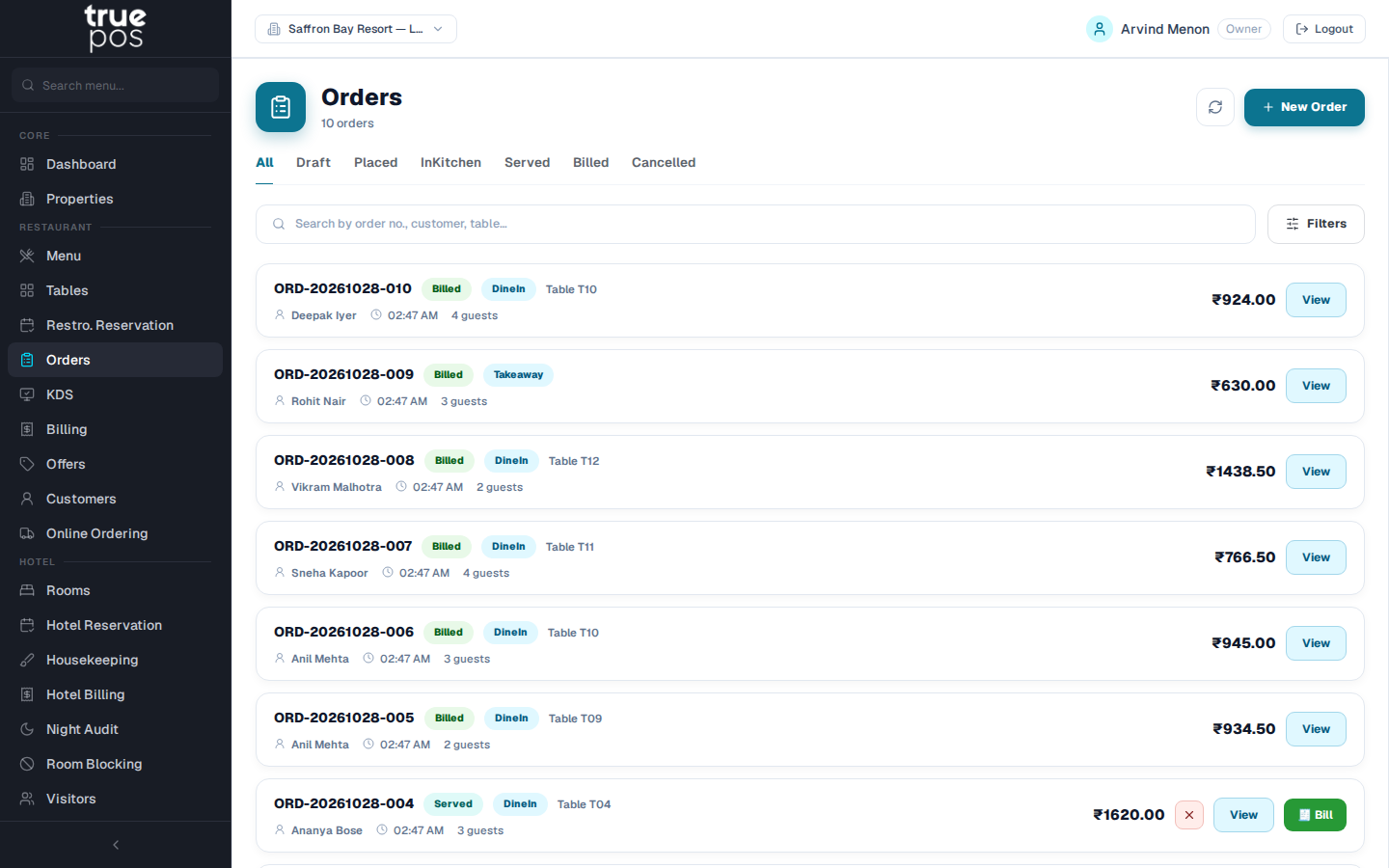
Use the search box (Search by order no., customer, table…) to find an order quickly.
Taking a new order
Before you start: choose your property in the property switcher at the top of the screen.
- Go to Orders and click + New Order.
- Under Order Type, choose Dine In, Takeaway, Delivery or Room Service.
- Fill in the details for that order type (see the table below). Required fields are marked *.
- Click Create & Add Items →. The order opens as a Draft.
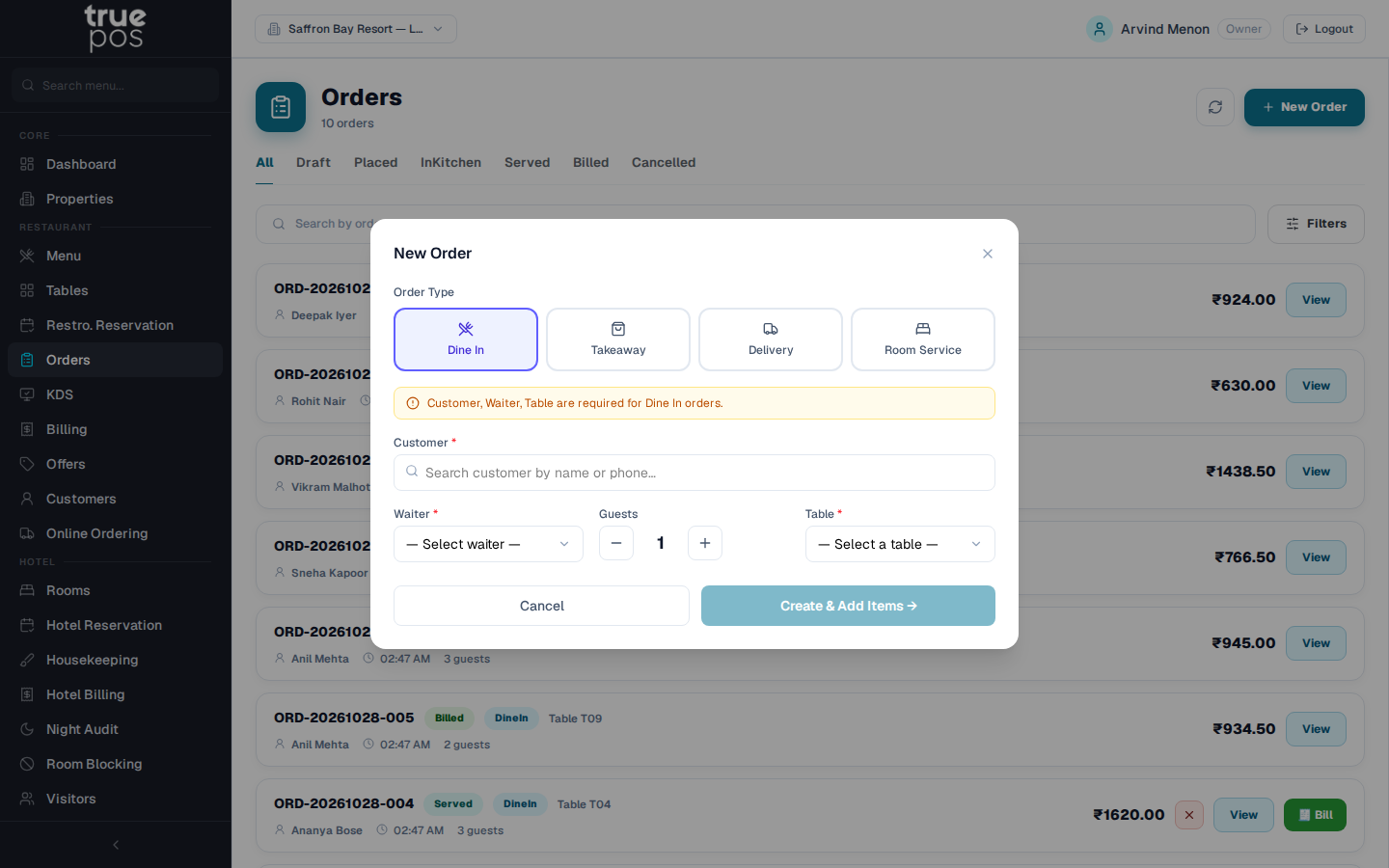
| Field | Dine In | Takeaway | Delivery | Room Service |
|---|---|---|---|---|
| Customer | Required | Required | Required | The in-house guest, see below |
| Waiter | Required* | Optional | Optional | n/a |
| Table | Required | n/a | n/a | n/a |
| Guests (number of people) | Optional | Optional | Optional | n/a |
| Delivery Address | n/a | n/a | Required | n/a |
* When a waiter is signed in, the order is assigned to them automatically, so the Waiter field is hidden.
If a required field is missing, a notice above the form lists it, for example Customer, Table are required for Dine In orders. The Create button stays disabled until those fields are complete.
Finding or adding a customer
- In Customer, start typing a name or phone number and pick the customer from the list.
- New customer? Type their phone number. If nobody matches, enter their name in Customer name, then click Create "‹name›" with phone ‹number›. The customer is saved and selected in one step.
Room Service orders · Hotel
Choose Room Service, then search by phone number or name for a guest who is checked in. The guest appears as Room 204 — Guest name. If you see No checked-in guest found, the guest must be checked in at the front desk first.
Orders from a table reservation
If you open an order from a restaurant reservation, the order type is fixed to Dine In. If the reservation covers several tables, you are asked to pick which table this order belongs to.
Adding items and sending them to the kitchen
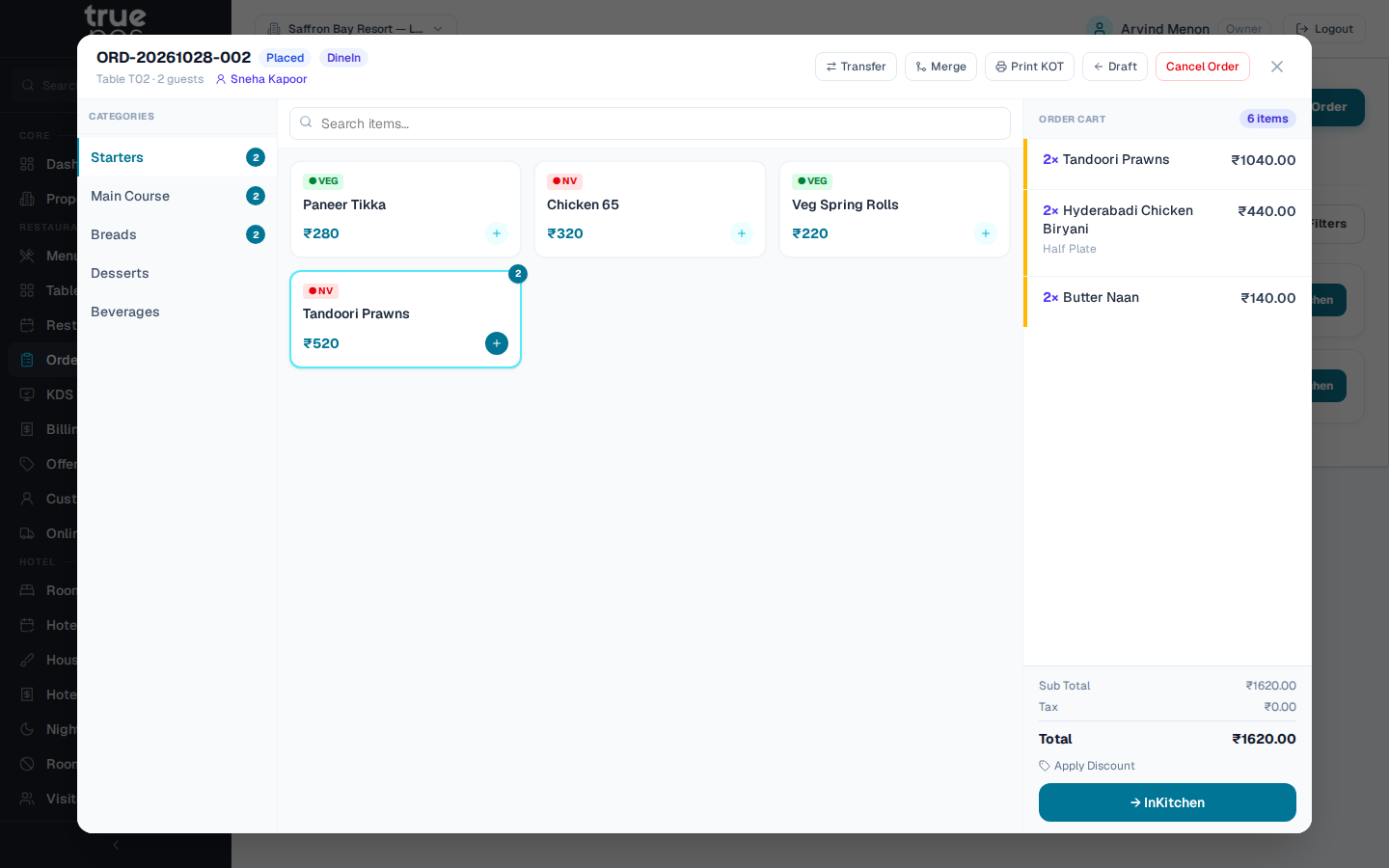
The order screen has three panels: Categories on the left, the menu items in the middle, and the Order Cart on the right.
- Pick a category, or type in Search items…. Veg items are marked ● VEG and non-veg items ● NV.
- Click an item to add it to the cart. Click it again to increase the quantity.
- If the item has variants (for example Half or Full), choose one in Choose Variant, set the Quantity, and add any Notes (optional) such as less spicy.
- Check the cart. It shows the Sub Total, Discount, Tax and Total. To remove an item, use its remove button.
- Optionally, choose an Est. wait time (10–60 mins) to tell the kitchen and the guest how long it should take.
- Click Place Order.
You'll see Order placed — sent to kitchen!, and the Kitchen Order Ticket (KOT) prints automatically.
Tip: On a phone or tablet, the cart is hidden to save space. Tap the View Cart bar at the bottom of the screen to open it.
Note: You can add items only while an order is Draft or Placed. To add more food after that, start a new order for the same table.
Printing or reprinting a KOT
The KOT prints automatically when an order is placed. To print it again, for example after a printer jam, open the order and click Print KOT. The reprint carries a *** REPRINT *** banner, so the kitchen doesn't cook the order twice.
Important: The KOT opens in a small print window. If you see Popup blocked — allow popups to print the KOT, allow pop-ups for the portal in your browser settings, then click Print KOT again.
Serving and moving an order along
- When the kitchen marks an item as Ready, a Serve → button appears next to it. Click it when the item reaches the table.
- When every item has been served, you'll see All items served — ready to bill! and the order moves to Served.
- You can also move the whole order forward with the main button (for example → InKitchen), or one stage back with the button in the order header if you made a mistake.
When the order is Served, the main button changes to Generate Bill. Billing is covered in the next chapter.
Applying a discount
While the order is Draft or Placed, staff with discount permission can click Apply Discount in the cart, enter the discount as an amount in rupees, and click Apply. The cart total updates and shows Discount applied.
Transferring or merging tables · Dine In
- Transfer: moves the order to a different table, for example when guests change seats. Open the order, click Transfer, and choose the new table.
- Merge: combines two groups into one bill, for example when two parties join together. Open the order you want to move, click Merge, pick the table to merge into, and click Merge Tables. All items move to that table's order, and this order is cancelled and its table freed. You can merge only into another Dine-In order that is Placed, InKitchen or Served.
Both options are available only to staff who have permission to transfer and merge tables.
Cancelling an order
An order can be cancelled while it is Placed or InKitchen. Open it, click Cancel Order and confirm. You'll see Order cancelled.
The Kitchen Display (KDS) · Add-on
The Kitchen Display replaces printed KOTs with a live screen in the kitchen.
Opening the kitchen screen
- Go to KDS in the left-hand menu. This page lists kitchen orders, with search and filters, for supervisors.
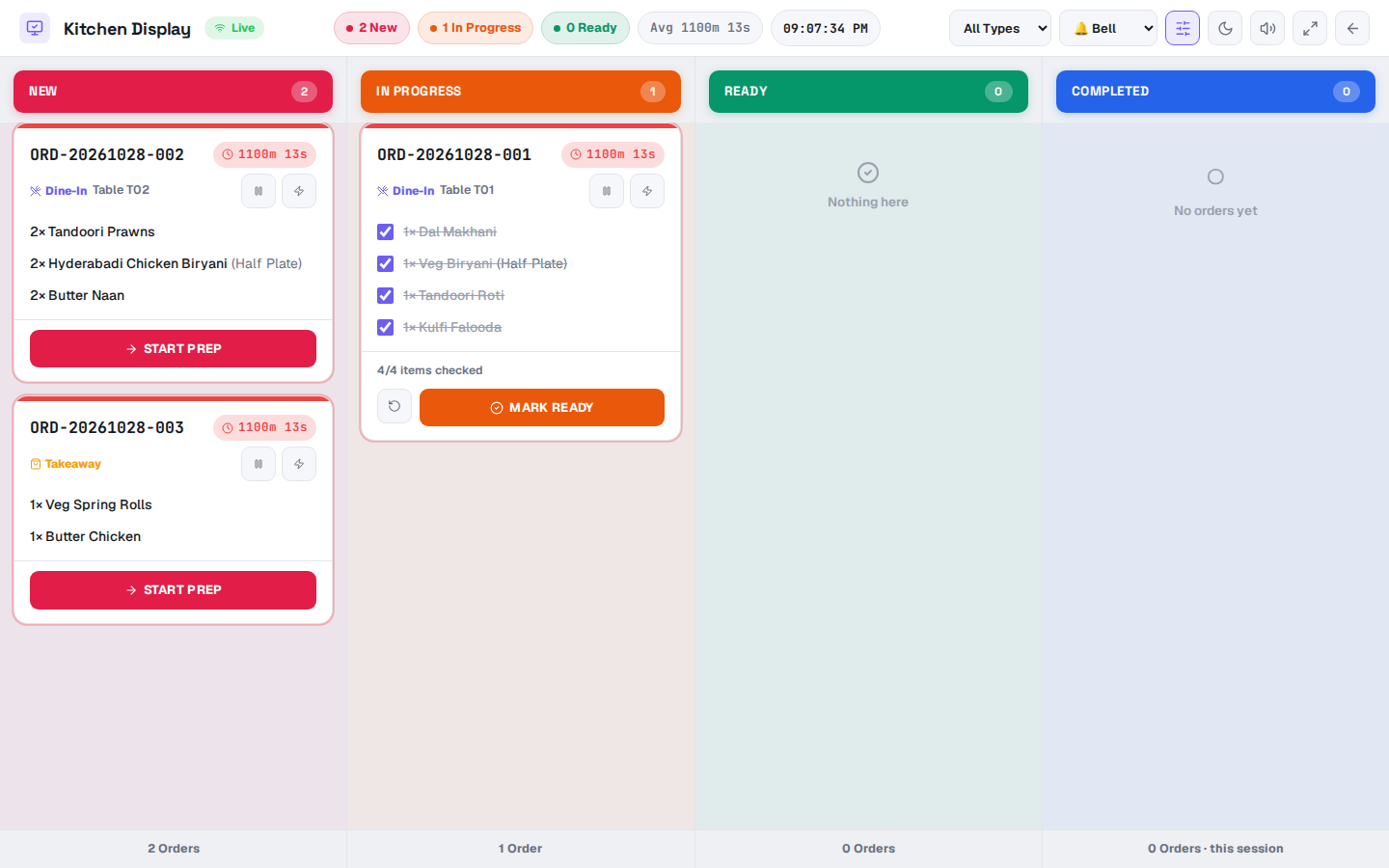
- On the kitchen's screen or tablet, click Launch Kitchen Display ↗. This opens a full-screen board designed to be read from a distance.
- Tap anywhere once to turn on sound alerts. Browsers don't play sound until the screen has been touched.
Working with the board
Orders appear as cards in three columns: New, In Progress and Ready. The counts are shown at the top.
| Action | What it does |
|---|---|
| START PREP | Moves a new order into In Progress |
| COMPLETE | Marks the order ready to be served |
| Rush | Flags an urgent order in red (RUSH) |
| Hold / Resume | Pauses an order, for example while a course is on hold (HELD) |
| Recall | Brings back an order that was moved by mistake |
At the top of the board you can:
- filter by All Types, Dine-In, Takeaway or Delivery
- sort by urgency
- switch between a light and dark theme.
Choosing the alert sound
Go to Settings → KDS and choose the Alert sound for new orders: Bell, Chime, Ping, Beep or None.